For the tenant/client – submitting a request through Hausing
Through the Hausing platform, you can submit requests to resolve maintenance issues, view the status of your requests, review previously completed work, and access files shared with you.
1. CREATING A USER
When you have been added as a user to the Hausing platform, an automatic notification will be sent to your email. Through that message, you can complete the setup of your user account.
2. HOME PAGE
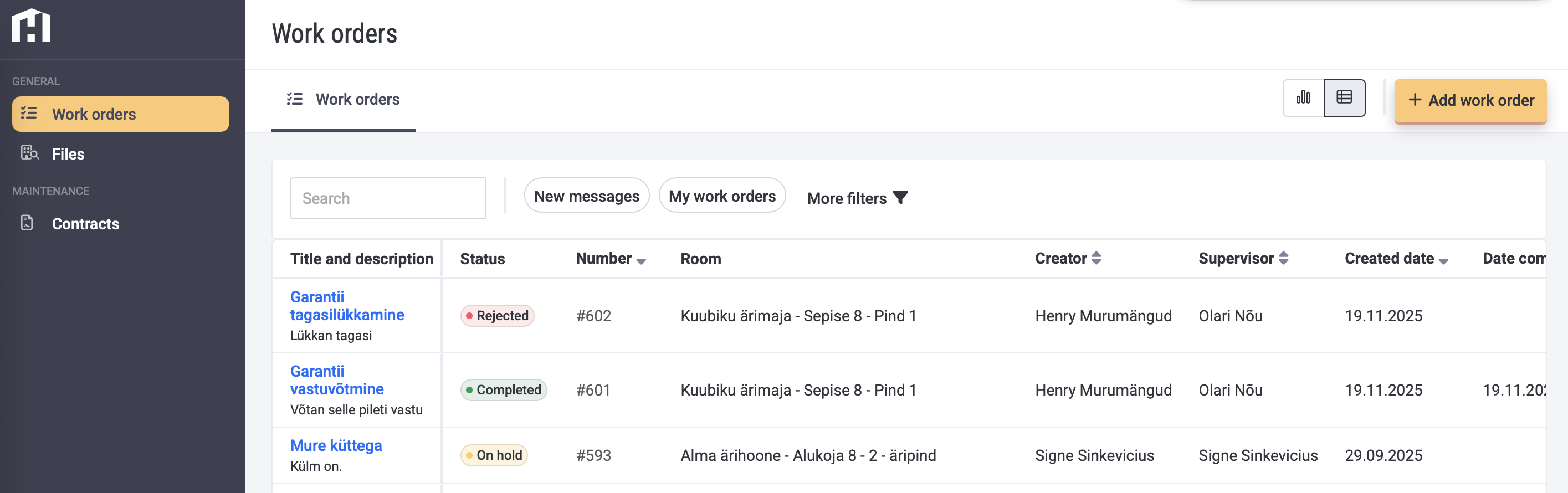
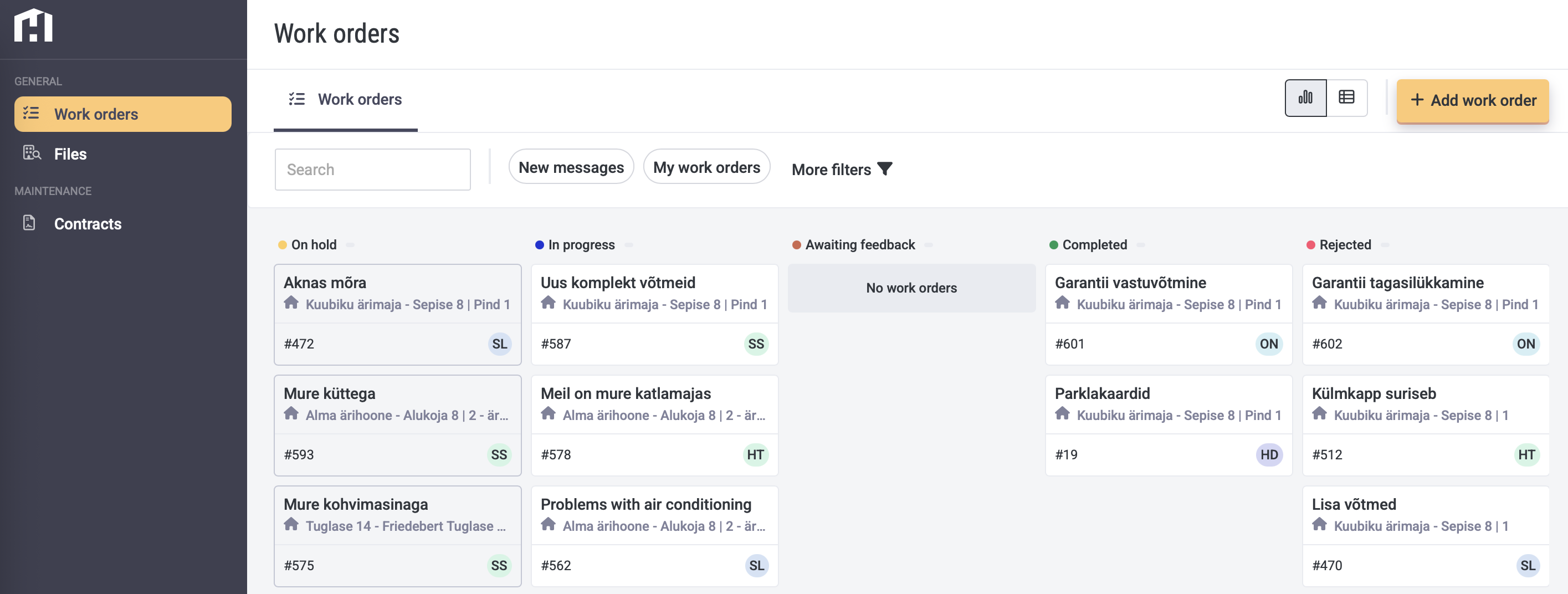
After logging in to Hausing at my.hausing.app, you will see the following view. If no requests have been submitted yet, the page will be empty.
The view can be filtered using different filters, and you can choose between board view or table view (the button is located in the upper right corner next to “Add work order”).
3. ADDING A REQUEST
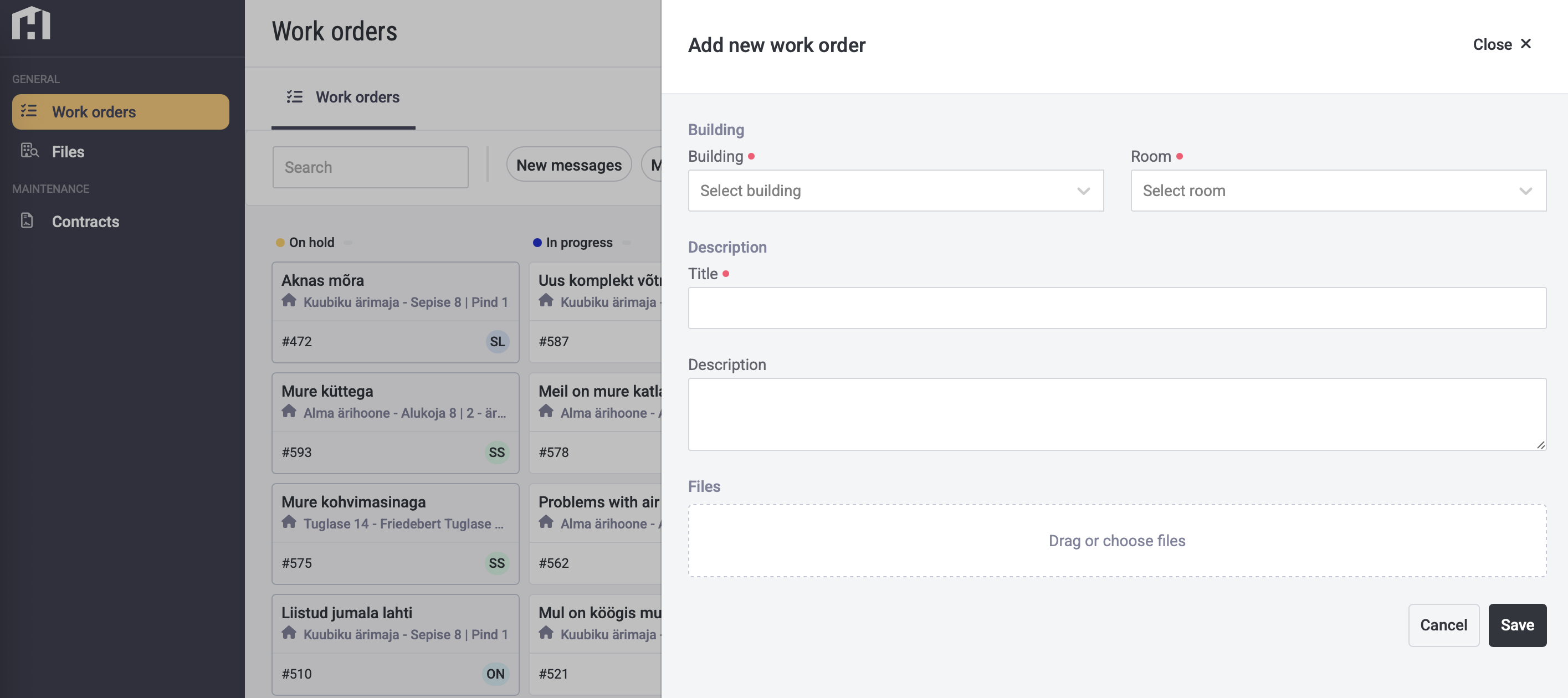
To add a new request, click the “Add work order” button in the upper right corner. This will open the “New task” window.
To submit a new request, you must select the building and room, enter a title, and describe the content of the request.
You also have the option to attach additional files or photos for clarification.
All submitted requests are divided into columns according to their status — on hold, in progress, awaiting feedback, completed and rejected.
4. OVERVIEW OF REQUEST STATUS
If the request status is:
- On hold - the request has been submitted but has not yet been reviewed by the responsible party.
- In progress - a contractor/worker has been assigned and the task is being carried out.
- Awaiting feedback - this column shows the tasks that are waiting for your feedback.
- Completed - the work has been finished and the request has been resolved.
- Rejected - the submitted request will not be processed further for certain reasons.
Changes in request status are communicated to the requester not only within the Hausing platform but also as automatic notifications sent to their email.
5. COMMUNICATION WITH THE REQUEST HANDLER
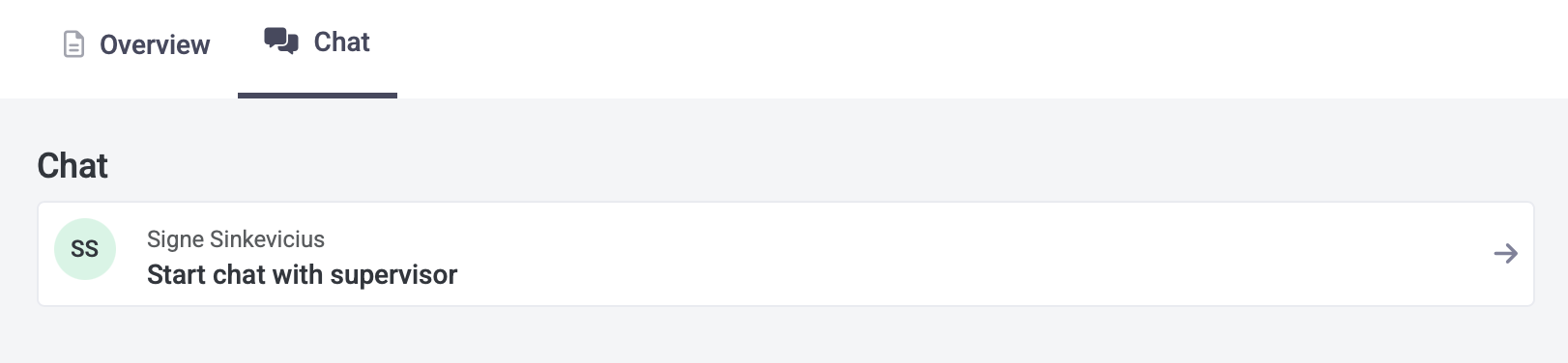
The user can communicate with the person responsible for the task.
To do this, click on the task and select “Chat” from the top menu.
When the task handler replies to your message, you will also receive an automatic email notification.
6. COMPLETING A TASK
When a task has been completed and its status is set to Completed, the user will receive a notification by email.
Completed tasks can later be viewed in the archive:
Open the task list view (button next to Add task) > More filters > in the Archived field, select Archived > Filter.