
How to create a maintenance calendar?
To create a maintenance calendar, you first need to add devices to buildings. Then, create a maintenance contract to specify who performs the maintenance tasks and how frequently.
1. ADDING DEVICES
- Open the "Buildings" menu and select the building where you want to add devices.
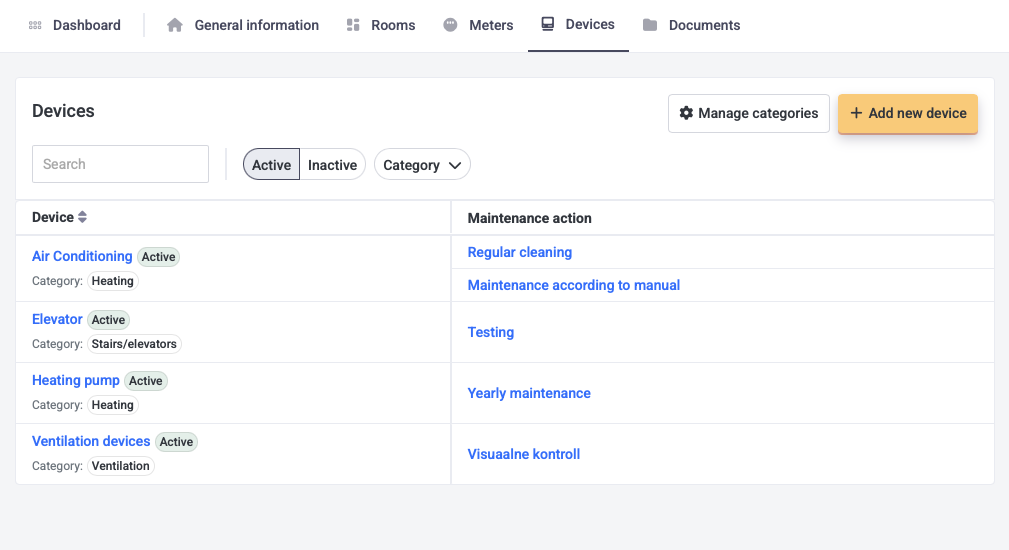
- Choose "Devices" from the top menu bar.
- Click "Add new device" on the right and fill in the required fields. Add maintenance tasks for each device that needs to be done. Add tasks separately if they have different frequencies (e.g., "Filter Replacement" and "Inspection") or combine them under a general task like "Maintenance."
- Click "Save" and a new device with actions is added.
2. CREATING SERVICE PROVIDER CONTACTS
- To associate tasks with external companies, you must add their contact information.
- Select "Contacts" from the left menu, then go to "Contractors" in the top menu.
- Click "Add contractor" in the top right corner.
- Enter the company's name and the primary contact email. Notifications for tasks will be sent to this email. Additional contacts can be added if tasks need to be assigned to multiple employees from the same company.
- Link the company with your buildings, where they are active.
- Click "Save" to complete the contact creation.
3. CREATING MAINTENANCE DIARY
To add tasks to the Maintenance diary, go to the Preventative maintenance menu.
- Open "Tickets generation" from the top bar.
- Click "Add new" and fill in the fields:
- Building
- Activity type – either device-related or general (general activities not linked to a device can be added in the same menu under "General actions")
- Select the device and the related activity
- Choose whether the performer is an internal Hausing user, an external service provider, or a tenant
- If the task is scheduled for the current period, an email is immediately sent to the assigned worker.
- Define the start and (optional) end date for when the task should appear in the calendar
- Set the frequency unit and frequency. See examples below 👇
- Start date(s) for task creation –
Single: task is created on the same date each time
Multiple: task is created on the selected dates
First weekday: task is created on the first selected weekday each month
- Execution period – defines the time window in which the task can be completed. Either until the end of the period or within a certain number of days from the task's creation.
- Click Save.
EXAMPLES:
- If the unit is month and frequency is 1, the task appears every month. If the frequency is 4, it appears every 4 months.
With the "month" unit, you set frequency, not specific months. For specific months, use the year unit. - If the unit is year and frequency is 1, the task is generated once a year. You can then choose the specific months the task should appear in.
If you assign the task to a tenant, make sure the tenant has the correct user permissions. To request access, email us at help@hausing.ee.
Read how to delete and edit tasks here.