
How to send price quotes to tenant/client?
1. Setting Up a Price Quote Template
Before sending price quotes, you need at least one template configured. Templates define the layout and numbering of your PDF quotes.
- Go to Work Orders > Settings and search for: Price quote section
- Click Price quote templates > New template to create a new price quote template.
- Fill in the document with your preferred text & variables and save.
- Configure the document starting number, prefix (optional) and "Valid until" period (number of days from the send date).
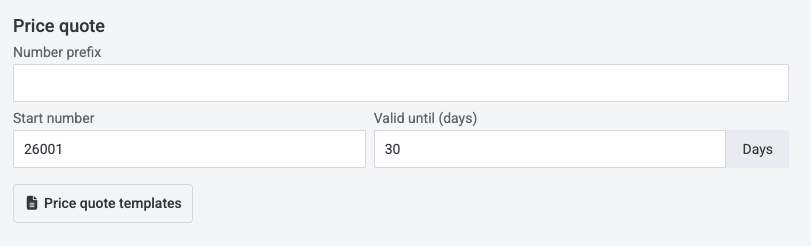
- Save the changes.
Note: A default template is pre-created for your company. You can edit it or create additional templates if you use different formats for different property types.
The price quote PDF uses the same line-item table as invoices (description, quantity, unit price, VAT), but without the billing period column.
2. Sending a Price Quote from a Work Order
Once your template is ready, you can send a quote from any work order.
- Open the work order and choose Quotes from the top row.
- Click Add price quote.
- Choose the template. If your company has only one template, it is preselected automatically.
- Choose the recipient. Either search from your contacts or enter manually.
- Add the items: enter a description, quantity, unit price, and VAT rate for each item, save.
- Preview the quote if you wish and send.
- Optionally, change the work order status to Pending Approval at this point to reflect that the work is pending cost sign-off.
- Click Send.
The tenant receives an email containing a secure external link to the price quote. The link does not require a tenant portal login to open.
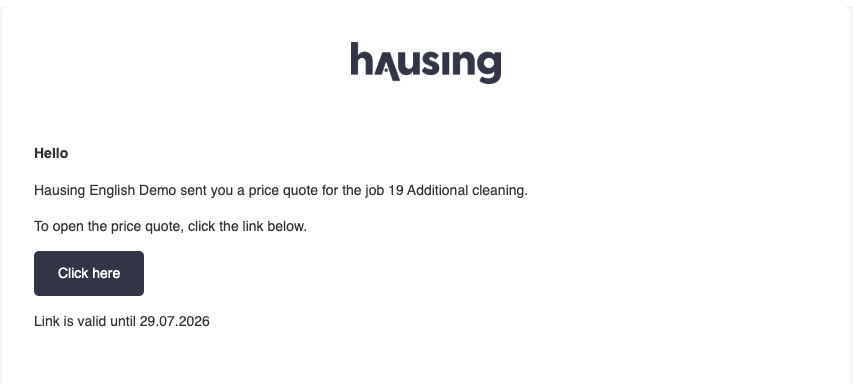
The sent quote is logged in the Price Inquiry block, showing the recipient, sender, and timestamp. You can resend the quote at any time from the same block if needed.
3. How the Tenant Approves or Rejects the Quote
The tenant opens the external link and sees the price quote with two actions available: Approve and Reject.
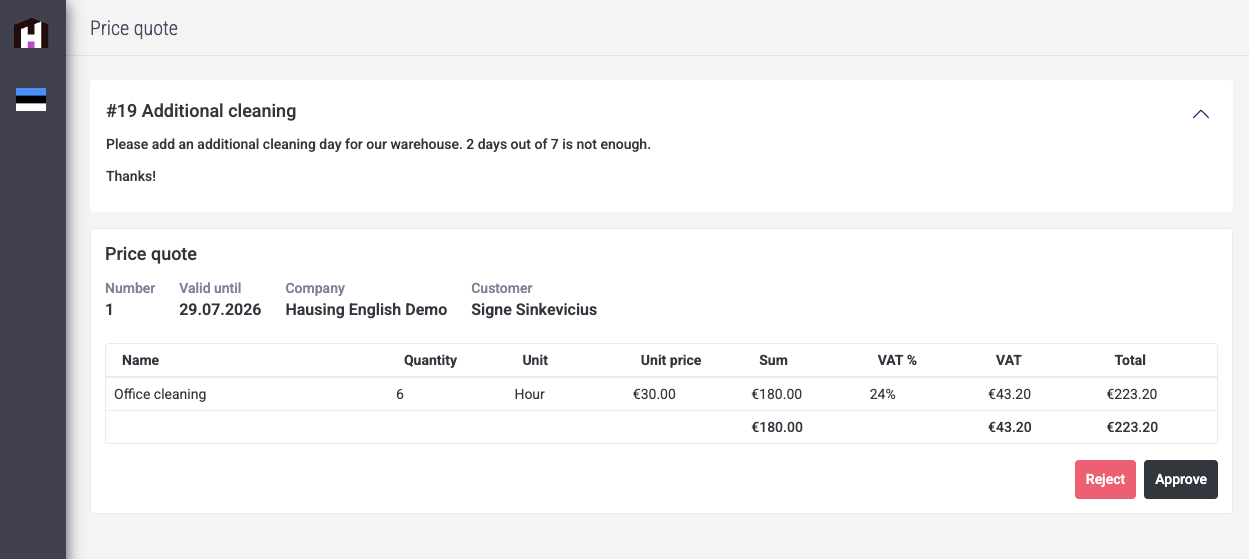
Approving the quote:
- The tenant clicks Approve. No additional input is required.
- You receive an email notification and an in-app notification confirming the approval.
- The price quote status on the work order updates to Approved.
Rejecting the quote:
- The tenant clicks Reject and must provide a rejection reason in a free-text field (mandatory).
- You receive an email and in-app notification about the rejection.
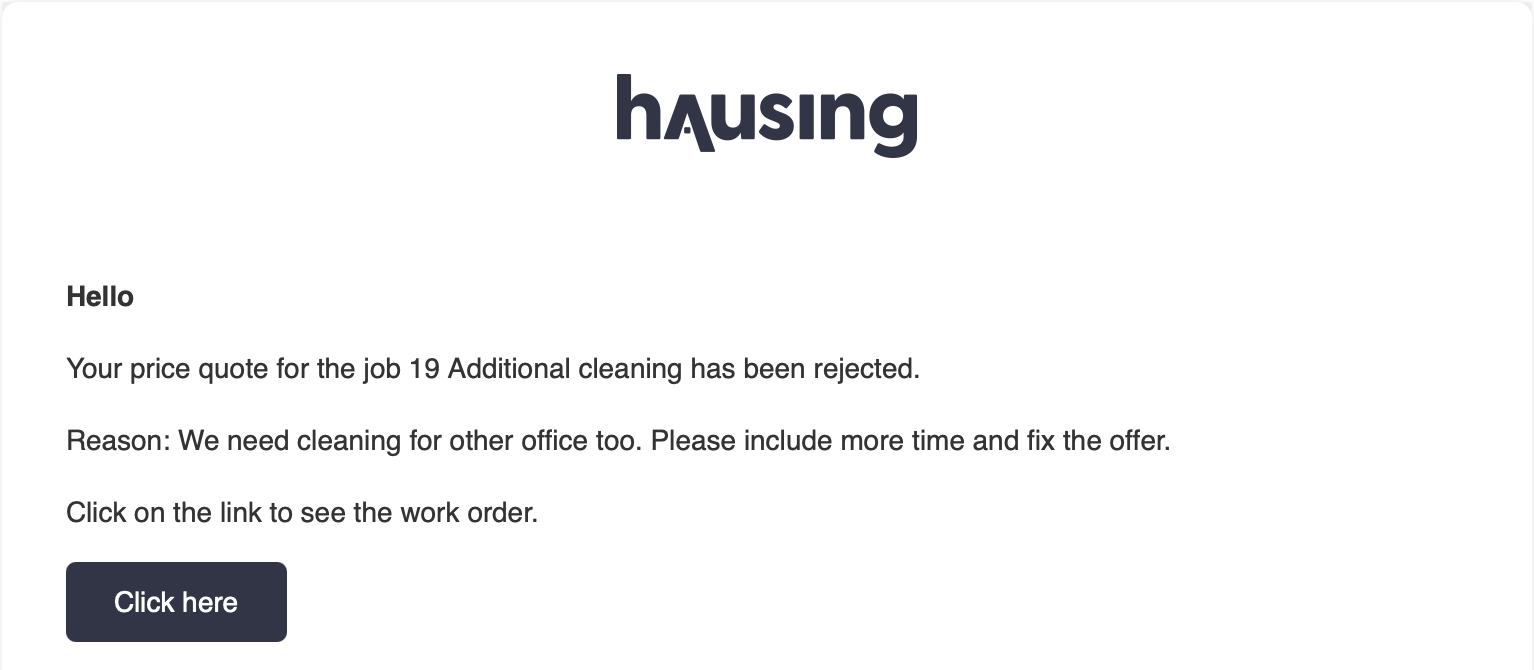
- A chat message is automatically created on the work order, addressed to you as the sender, containing the rejection reason and the price quote file as an attachment. If a chat thread already exists between you and the tenant, the message is added to that thread.
- The rejection reason is also visible directly in the price quote view on the work order.
- The price quote status updates to Rejected.
Important: Once the tenant approves or rejects the quote, the action cannot be undone. The external link remains accessible and shows the quote in a read-only state with the recorded outcome.
4. Summary
| Step | Who | What happens |
|---|---|---|
| Create template | Property manager | Configure quote layout and numbering in Work Order Settings |
| Send quote | Property manager | Select recipient, template, and line items from the work order |
| Review & respond | Tenant | Opens external link, approves or rejects with a mandatory reason if rejecting |
| Notification | Property manager | Receives email + in-app notification; rejection reason appears in work order chat |
| Filter | Property manager | Use Price Quote filter in work orders list to track quote statuses |