
How to add, split & merge rooms?
In Hausing, costs are allocated by room. If several tenants start using one room, or several rooms are merged into one, the rooms need to be set up again in Hausing.
Changing rooms has four parts: rooms, meters, cost participation and leases.
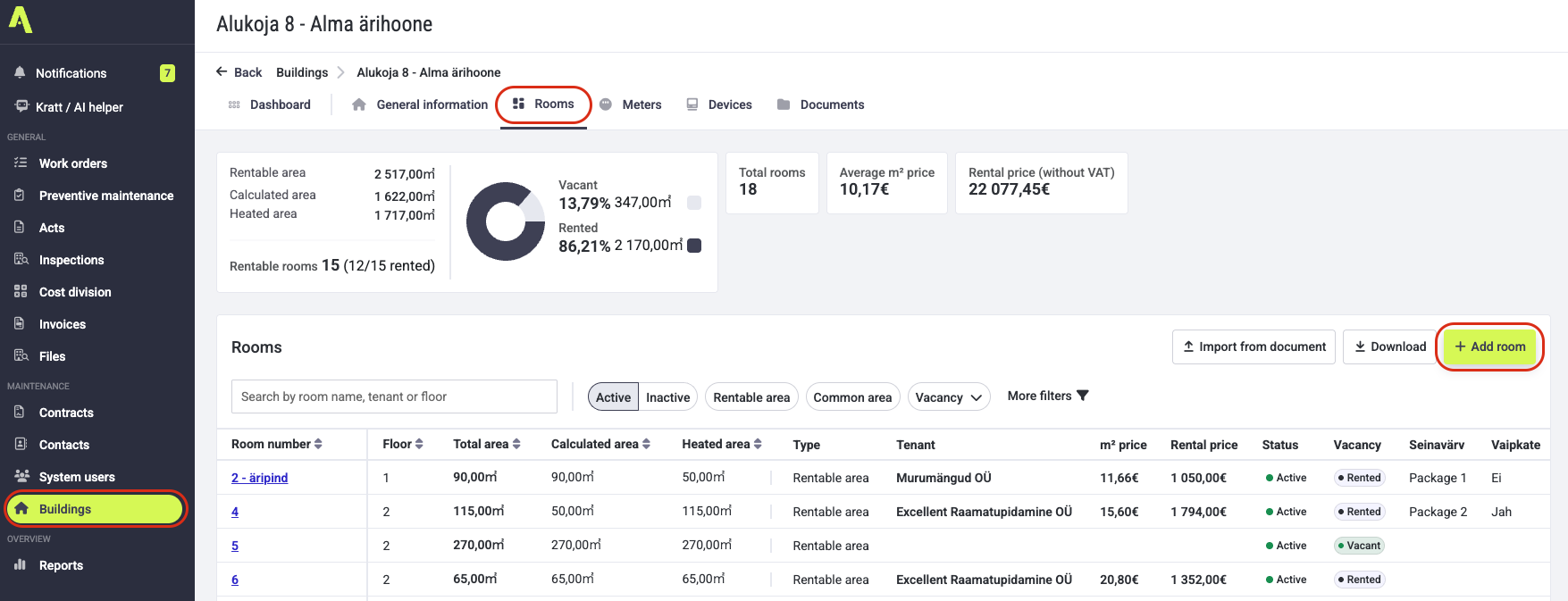
1. Adding a new room and changing its square metres
- Open Buildings and select the building.
- Select Rooms in the top bar.
- Click Add room on the right.
- Enter the room's number or name and its size (m²).
- Click Save.
When creating a room, you can also choose right away which meters it takes part in. In that case, click Continue instead of Save. You can also do this later in the meters menu.
1.1 Changing the square metres of an existing room
- Open Buildings > Building > Rooms.
- Click the room's name and select Edit.
- Change the square metres.
- Click Save.
NB! Area-based costs are split according to the m² entered for each room.
2. Splitting a room and merging rooms
2.1 Splitting a room (one room is shared between several tenants)
- Keep the existing room and change its square metres to the new size.
- Add a new room for the remaining part (see section 1).
- Set up meters, cost participation and the lease for the new room (see section 3).
2.2 Merging rooms (several rooms become one)
- Change the square metres of one room to the combined size.
- Make the remaining room inactive: click the room > Edit > Inactive > Save.
- Check that the remaining room takes part in all the meters and costs it needs (see section 3).
3. Meters, cost participation and leases
After changing the rooms, set up every new or changed room in three places.
3.1 Meters
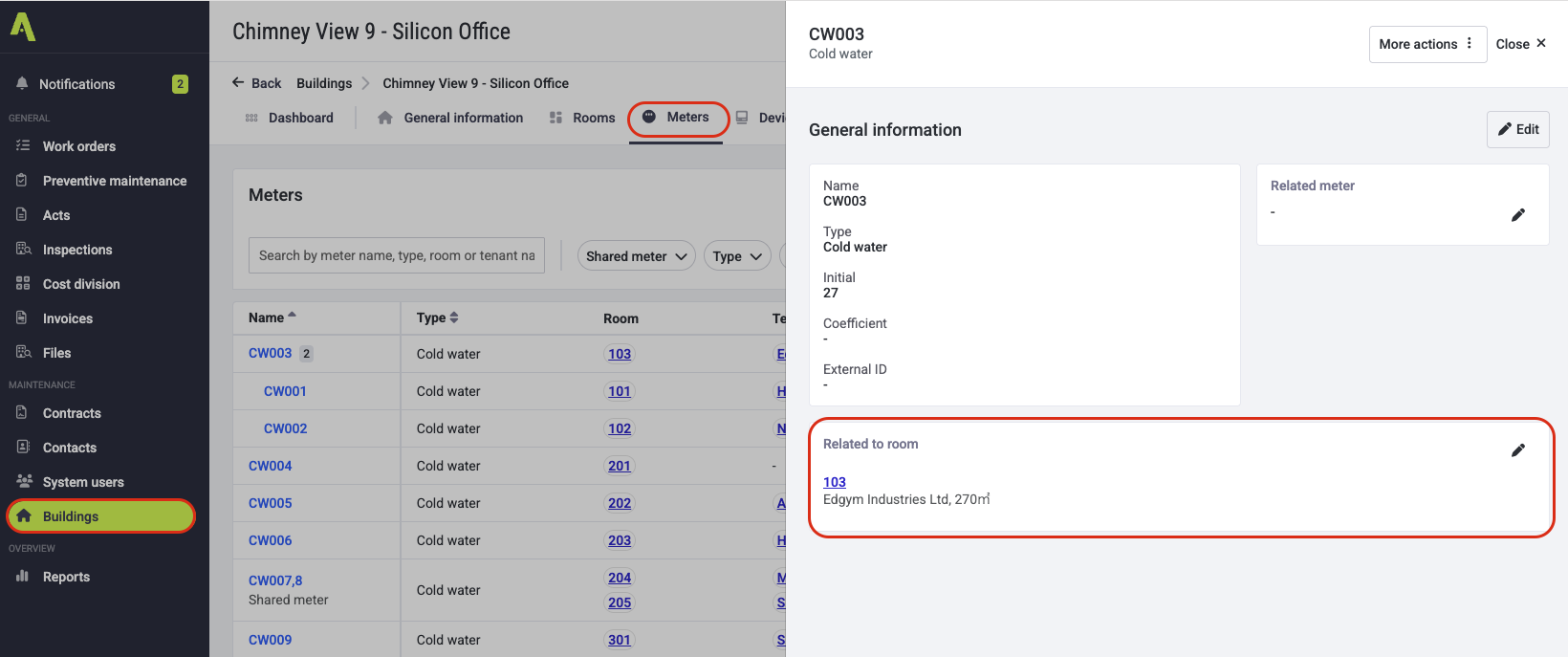
If you didn't assign the room to meters when you created it, do it in the meters menu.
- Open the Objects menu, the building and its meters.
- Open the meter you need and select Edit.
- Add the new room as a participant and save.
3.2 Cost participation
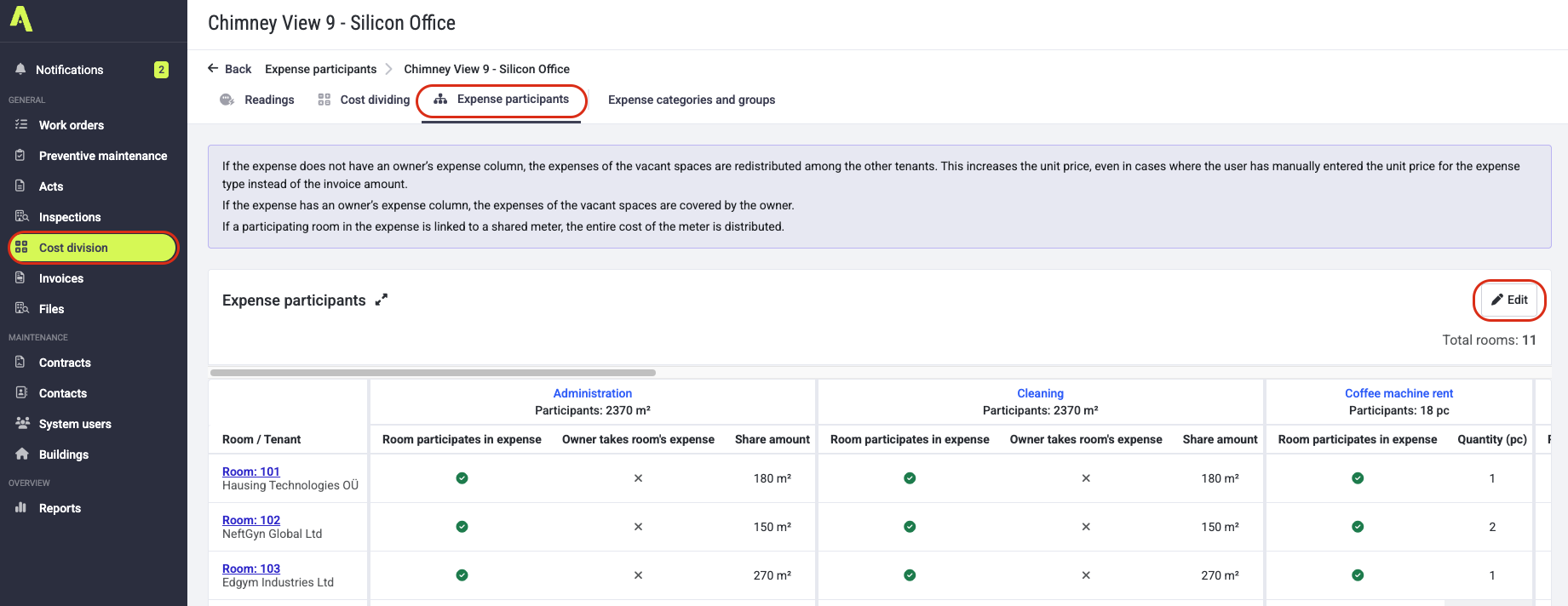
A new room is not added to cost division automatically.
- Open Cost division > Building > Expense participants.
- Click edit.
- Tick the costs the room takes part in.
- If the room takes part but the owner covers the cost, tick the Owner covers the room's cost column.
- Click Save.
3.3 Leases
Every room must be linked to the correct tenant's lease. You can add a lease under Leases > Building > Add new, or read more in this guide.
4. Common errors
- The new room gets no costs. The room has been added but isn't marked in Cost participation. Add it as a participant (see section 3.2).
- Costs are split incorrectly. The rooms' square metres don't match their real sizes, or their total doesn't add up. Check the m² of every room.
- No invoice is created for the tenant. The room has no valid lease, or the lease is linked to the wrong room.
- Overlapping leases. Leases on the same room can't have overlapping dates. If one lease ends on 20 January, the next must start on 21 January.