
Collecting end comments and resolutions on work orders in Hausing
Enabling the settings
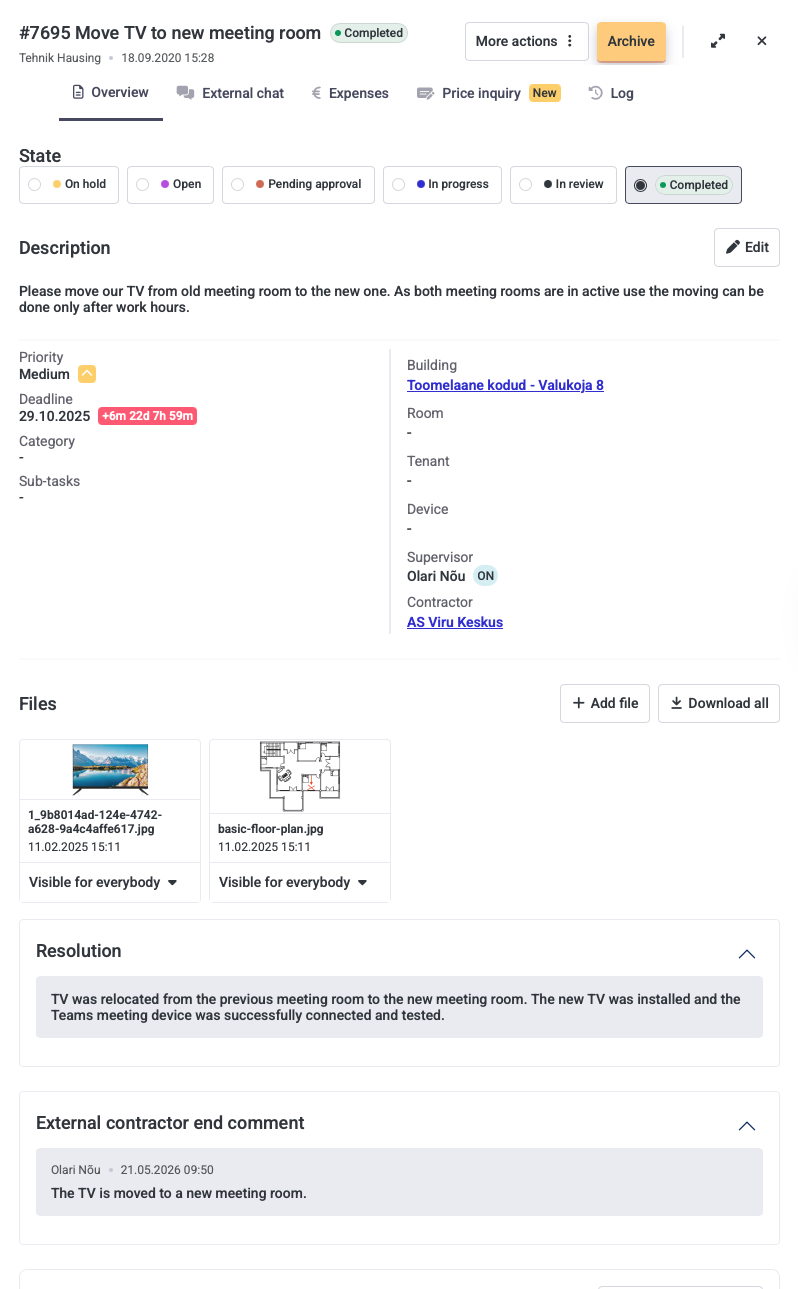
The work order comment and resolution feature is controlled by three settings, all of which are off by default. You can turn on any combination that fits your workflow.
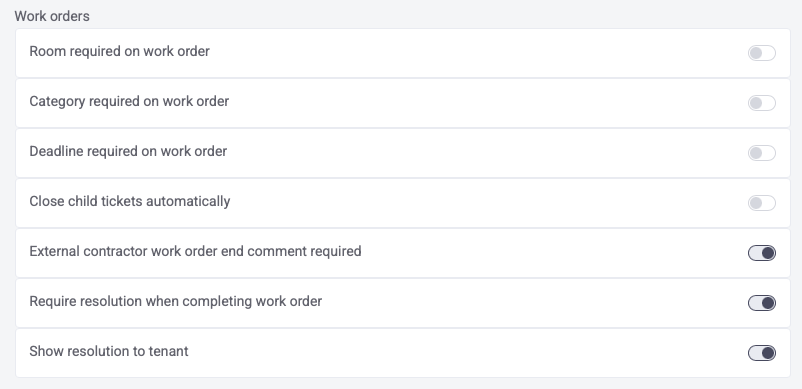
Go to Work orders → Settings and look for the following toggles:
- External contractor work order end comment required: When enabled, the external partner is required to leave a comment before they can mark the work order as finished. This comment is only visible to internal users.
- Require resolution when completing work order: When enabled, the internal user must add a resolution when moving the work order to the Finished status.
- Show resolution to tenant: When enabled, the resolution is displayed in the tenant portal, the external work order view, and the external building view.
You can combine the settings in the following ways:
End comment | Resolution | Visible to tenant | Result |
|---|---|---|---|
✅ | — | — | External partner must leave a comment on finish |
✅ | ✅ | — | External partner comments; internal user adds resolution |
— | ✅ | ✅ | Internal user adds resolution; resolution is shown to the tenant |
✅ | ✅ | ✅ | Full flow - comment, resolution, and tenant visibility all active |
How the external partner adds an end comment
When the external partner marks the work order as finished in the external portal, they will be prompted to leave a closing comment before the status change is confirmed.
- The external partner opens the work order in the external portal.
- They click Mark as finished.
- A comment field appears - they type their end comment and confirm.
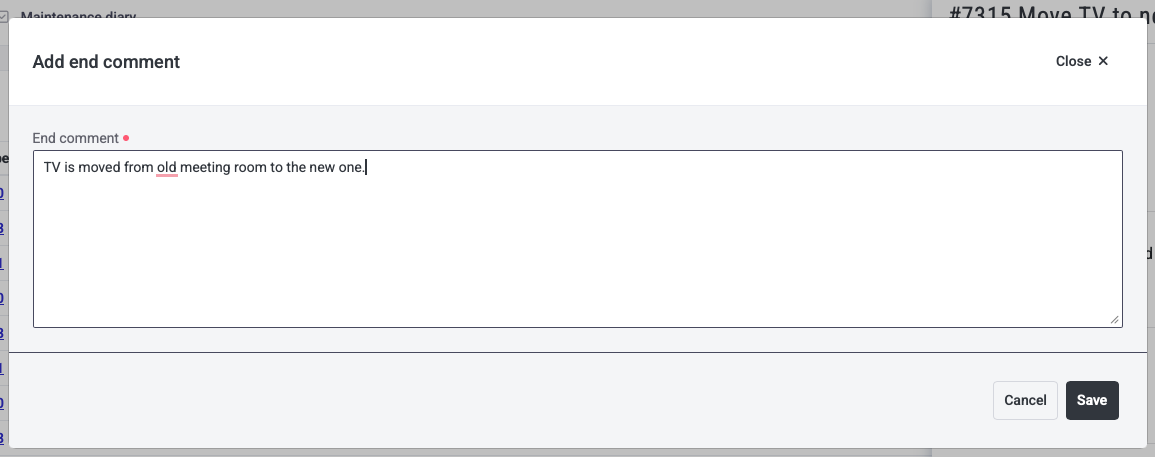
The end comment is saved to the work order log and is visible to internal users. It is never shown to the tenant.
How internal users add a work end comment
When the work order end comment setting is on, internal users can also add an end comment.
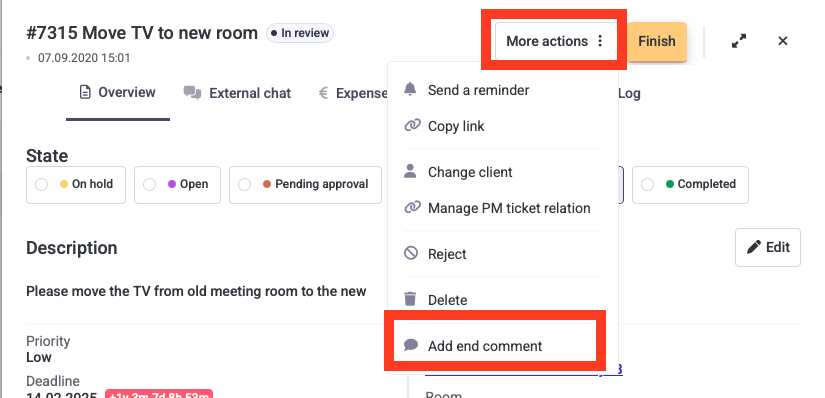
- Open the work order.
- Click the More actions button.
- Select Add work end comment.
- Type the work end comment and save.
How internal users add a resolutin
When the resolution setting is on, internal users must add a resolution when moving the work order to Finished status.
- Open the work order.
- Move work order to Finished status.
- Type the resolution and save.
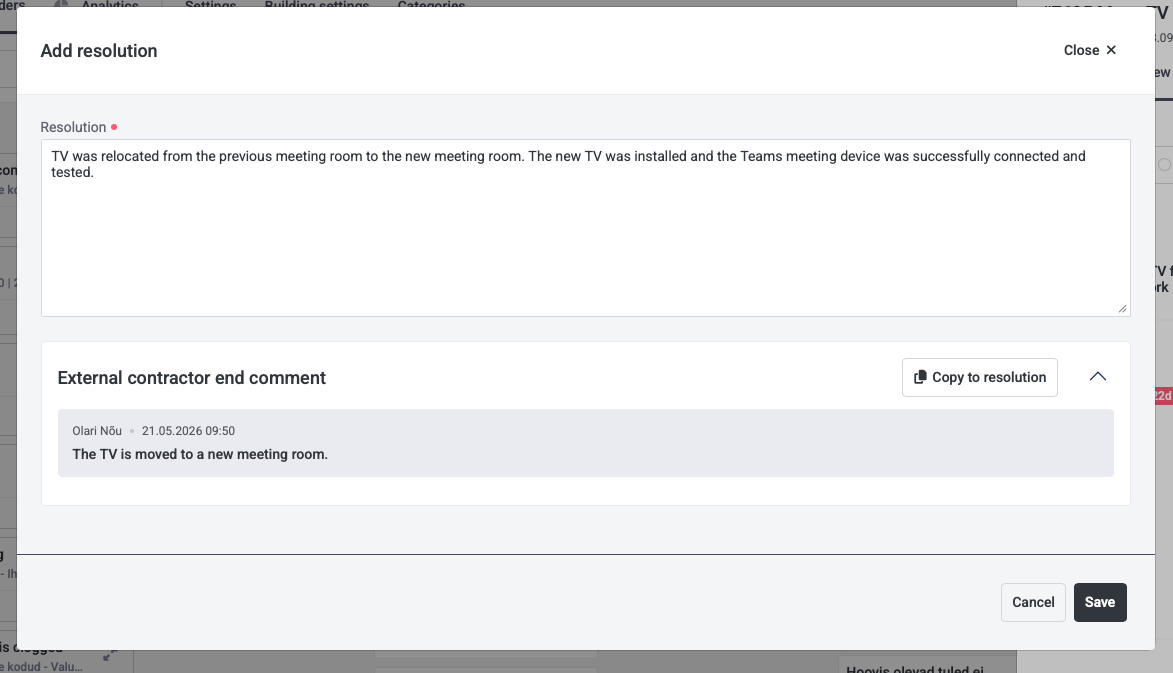
Using the end comment as the resolution
If the external partner's end comment already describes what was done, you can copy it directly into the resolution field with one click and edit it if needed.
- Open the work order.
- In the resolution section, you will see the end comment displayed with a Copy to resolution button.
- Click the button - the text is automatically pasted into the resolution input.
- Edit the text if needed, then save.
Resolution visibility to tenants
If the Resolution visible to tenant setting is on, the resolution text is displayed in three places:
- The tenant portal
- The external work order view
- The external building view
The end comment is never shown to tenants regardless of settings.
Work order end comment and resolution in Excel export
Both fields are included in the Excel work order export as separate columns: End comment and Resolution. This makes it easy to analyse completed work orders and include closing notes in reports.
