
Maintenance tasks management
1. DASHBOARD
The main view displays all tasks related to your objects and their statuses.
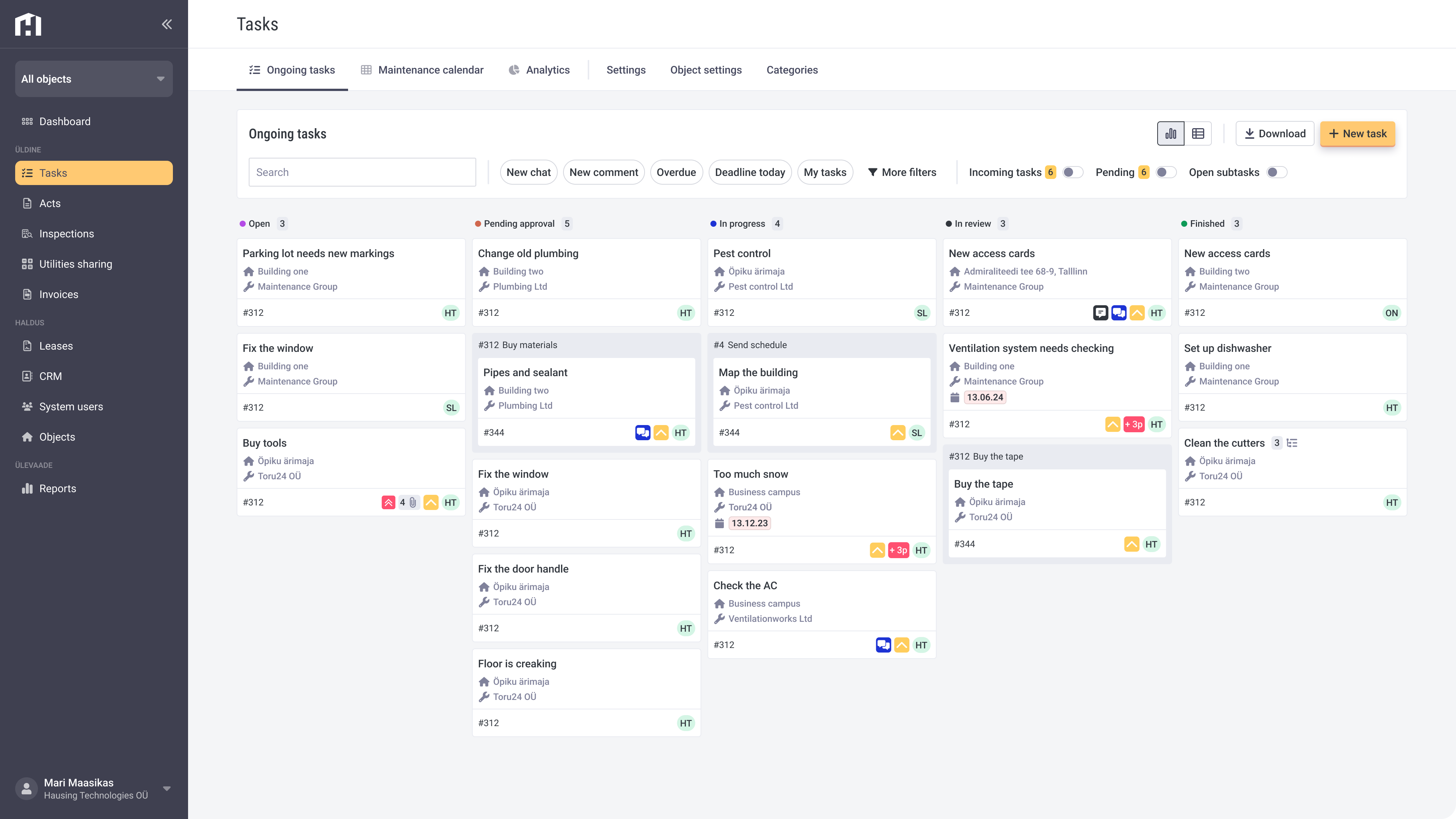
Incoming Tasks - These are tasks that have been received in Hausing but have not yet been addressed. To view them, toggle the button in the top bar. When you open a task, you can accept it, reject it, or put it on hold. Assign it to a specific object/room/tenant and designate a responsible person who will receive an automatic notification and see the task in the "Open" column of their dashboard. Additionally, you can send a response to the task initiator.
Open - The task has been accepted and assigned to someone. If the task does not require coordination or clarification, it can be forwarded to a subcontractor or an in-house person for execution (the person accepting the task can also assign an executor). The executor receives an automatic notification about the task.
To do - The issue has been received, but before proceeding, clarification or approval is needed. Open the task and select "External Chat" from the top menu to send a message to the relevant person, who will receive a notification.
In Progress - The issue is being handled.
In Review - Before a task is considered complete, someone must review it. For example, the client or responsible person may want to check whether the work was completed correctly. If the executor is an external partner, their completed task is always moved to the "In Review" status to ensure the client has the chance to verify the work and mark it as complete.
Completed - The issue has been resolved correctly and requires no further action. If the executor is an in-house person, their completed task is automatically marked as "Completed."
You can also view tasks in table format by selecting the option in the top-right corner.
To filter tasks by different parameters, use the quick filters in the top bar or click the filter icon.
To download tasks as an Excel file, select the corresponding option in the menu.


2. TASK VIEW
When you click on a task, a detailed view opens on the right.
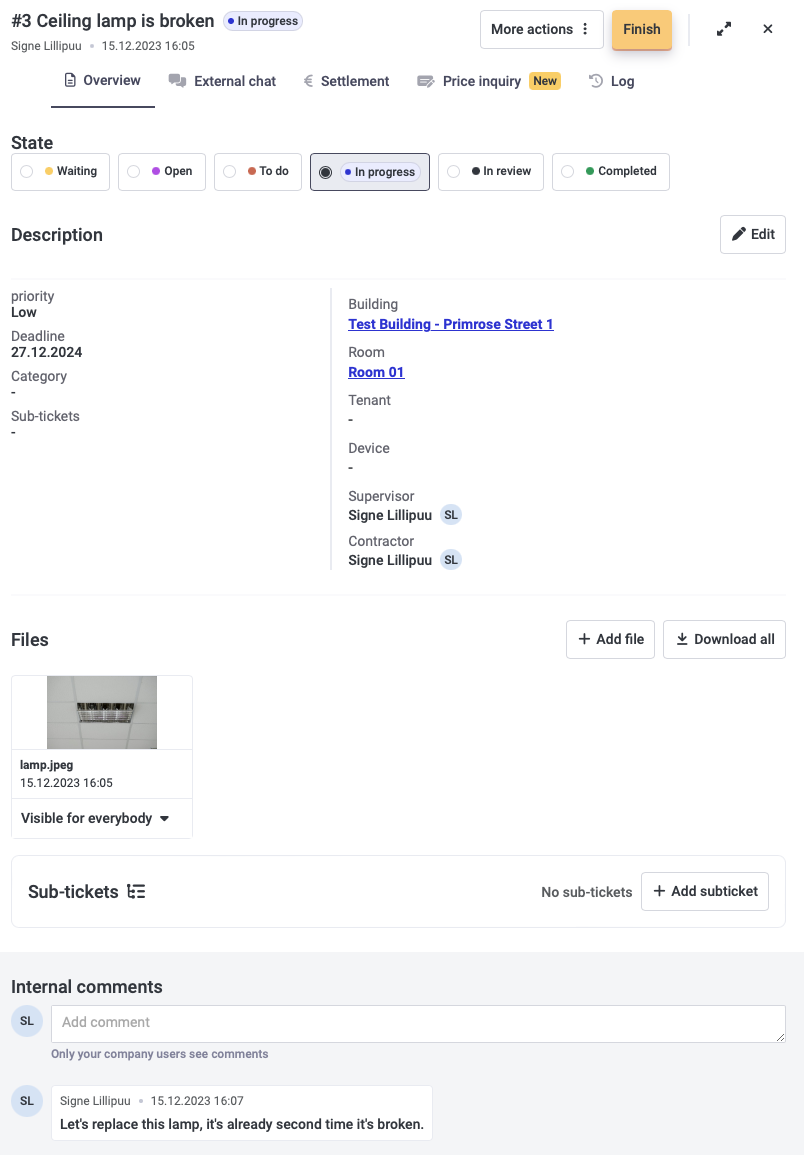
Pencil Icon - Opens the edit view, where you can modify task details such as deadlines, responsible persons, categories, priorities, etc.
Statuses - Displays the current status of the task. Clicking on a status moves the task to the selected status automatically.
Log - Shows who performed what actions on the task.
Comments - At the bottom, you'll find comments related to the task, visible only to your company's Hausing users. Use comments to provide updates or a summary of what has been done or left undone—notes that don't require a direct response. No notifications are sent for comments.
External chat - The External Chat tab in the top menu allows you to communicate with people involved in the task. This should be the primary channel for asking questions, starting discussions, etc. When you start a conversation, the other party receives a notification, and if they reply, you’ll get one too.
Settlement - here you can add costs associated with the task. You can include material and labor costs, which are useful for analyzing which categories and objects incur the most or least expenses.
More Actions - By selecting "Send Reminder," you can send a reminder to the executor about the assigned task. You can also copy the task link to share it or delete the task if needed.
3. ADDING A NEW TASK
If you notice an issue and want to add it to Hausing, click "+ Add Ticket" in the top-right corner (on mobile, it's in the bottom-left corner). This opens a form:
Title - briefly describe the issue in a few words.
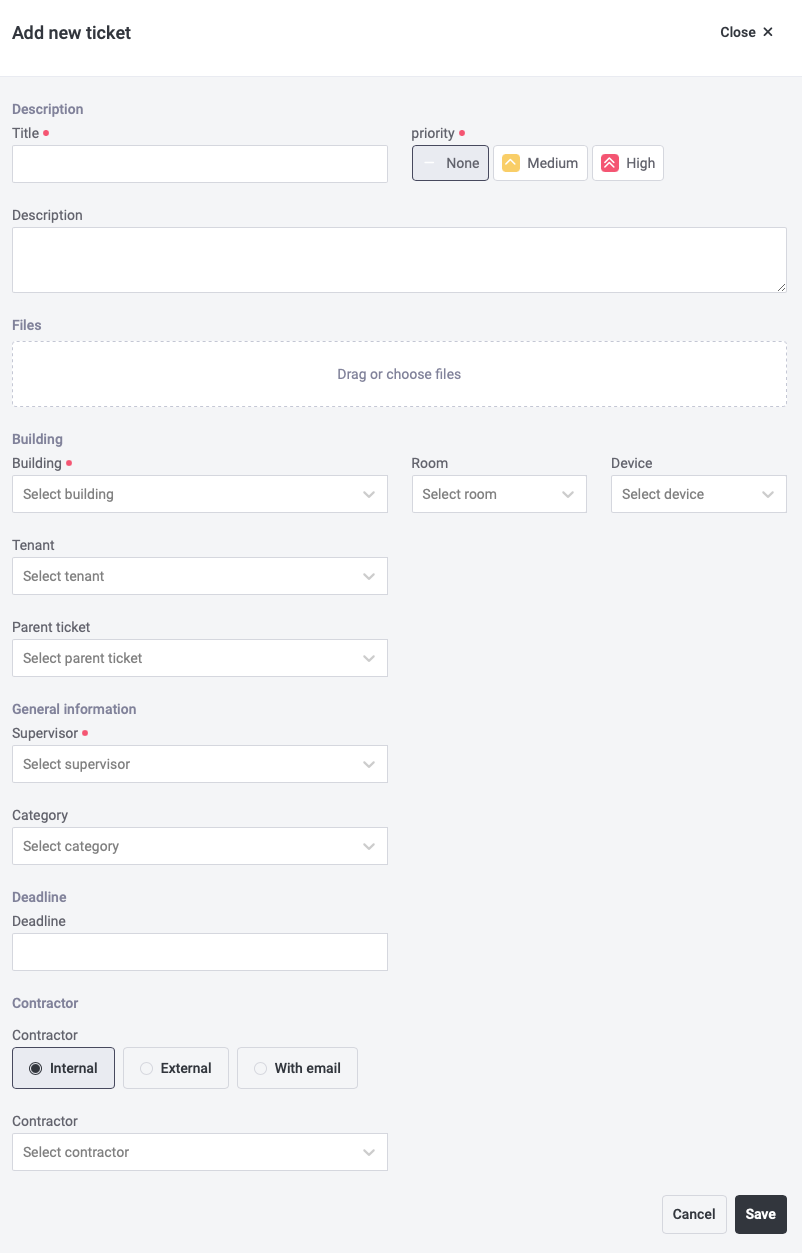
Description - provide a detailed explanation of the problem.
Files - If using Hausing on mobile, you can take a photo directly or upload an existing one from your gallery. On a computer, only existing files can be uploaded.
Building - select the object associated with the issue.
Room - choose a room to later analyze tasks by room.
Deadline - specify the deadline for completing the task.
Responsible Person - assign who will ensure the task is completed.
Task Category - select the category related to the issue.
Priority - indicate whether the priority is low, medium, or high.
Contractor - choose whether the contractor is an in-house or external worker. This can also be added later if you're unsure who will handle the task.
Finally, click "Save."
The task will appear in the "Open" column, and the assigned responsible person will receive an automatic email notification about the new task. The task will also appear on their dashboard. Once the responsible person accepts the task, it automatically moves to the "In Progress" status for all users.