
How to edit, delete and credit invoices?
1. EDITING INVOICES
- To edit an invoice, open the invoice by clicking the pencil icon.
- You can edit invoice dates, articles, row descriptions, quantities, prices, etc.
- To add a new row to the invoice, click "Add Row" on the right and fill in the fields.
The "Contract" and "Room Number" fields are important for accurate analytics, but they are not mandatory.
- Click "Save."
2. DELETING INVOICES
- Click the trash can icon on the invoice line or check the boxes in front of the invoices you want to delete. Then, select "More Actions" from the top menu and "Delete Selected."
3. CREDITING INVOICES
- To credit an invoice, open the invoice by clicking the pencil icon, then click the arrow next to the "Save" button in the top right and select "Credit".
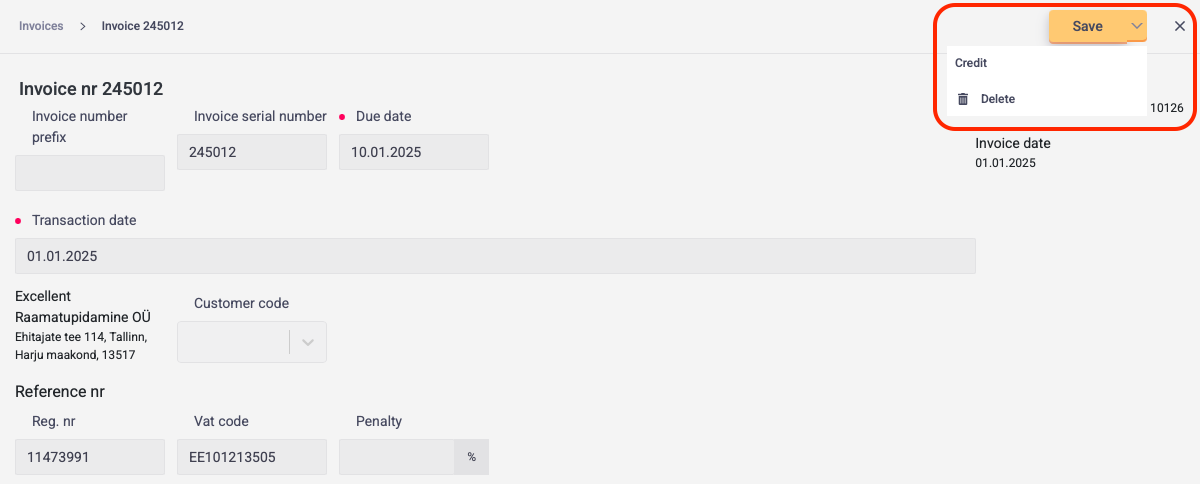
- Negative signs will appear in front of the rows.
- If needed, adjust the quantities or prices.
- If you want to credit all rows, click "Save".
- If you only want to credit specific rows, delete the others using the trash can icon at the end of each row and click "Save".